

Summary
This blog unpacks everything you need to know about SharePoint document libraries—the foundational building block of an effective document management strategy.
Does a SharePoint document library enhance collaboration and information sharing? Are our documents safe? Can it track changes? Should I create it from scratch or use custom templates? Let’s find out what a SharePoint document library is, what its different types are, and how you can fully leverage it to maximize your SharePoint investment.
Data, the lifeblood of modern businesses, still remains one of the most unorganized resources. A recent IDC study predicts that organizational data will grow at a surprising annual rate of 42% over the next two years.
The same report highlights that an average employee emails more than two documents daily to a minimum of five people, creating more than ten documents stored in multiple locations. Strikingly, the ratio of used and unused data in current organizational storage stands to be around 32% to 68%, pinpointing an inefficient document management structure.
Unorganized information heavily impacts business intelligence and strategic decision-making. Organizations facing a severe lapse with their information immobility policies are gradually becoming unproductive workplaces.
Do you find your documents unorganized in siloed desktops and cluttered network drives? If yes, you urgently need to revisit your document management strategy.
Let’s outline a foolproof document management strategy using a robust document library and understand how it enhances workplace collaboration and operational efficiency.
What Is a SharePoint Document Library?
SharePoint document library is a secure and centralized place where your employees can store documents, work on them together, and access them from any device, irrespective of location.
The idea of a document library in SharePoint is not restricted to a single library. Instead, it provides dedicated libraries for several departments, projects, and employees.
Certainly, a traditional library looks more like several file cabinets, countless drawers, physical folders, and uncountable paperwork. However, the entire scenario seems quite different while discussing a document library in SharePoint.
While the SharePoint libraries help you organize, maintain, and categorize documents within specific SharePoint sites, they eventually impact the overall document management workflow within the organization.
For instance, how much time do your employees lose searching for a critical document?
The same research conducted by IDC suggests that employees spend an average of about 2.5 hours per day, i.e., 30% of the workday, searching critical documents.
SharePoint document library allows accessible search options with added meta tags and drag-and-drop features, making it easy for employees to locate essential documents. Furthermore, the amount of time and money wasted in recreating lost documents, organizing databases, and searching records impacts overall productivity.
Indeed, considering a smarter, more organized, centralized, and secure alternative can save you a few extra dollars annually.
Want to organize documents the right way? See SharePoint document library best practices.
What Are the Types of Document Libraries in SharePoint?
The traditional SharePoint intranet, characterized by a classic user experience, offered two basic libraries: a picture library and a wiki page library. However, document libraries gradually evolved owing to their expanding utilities offering a wide range of functionalities.
The modern classification of SharePoint document libraries is explained in the below section highlighting their business applications.
1. Document Library
Let us not get confused here.
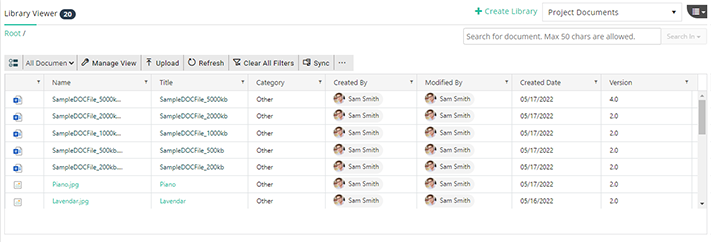
Primarily, a document library is the most basic format for organizing documents of all types in a SharePoint site. It is a default library that gets created every time a new site is created in SharePoint. It offers users the opportunity to organize documents using keywords and access metadata associated with the particular document.
2. Site Asset Library
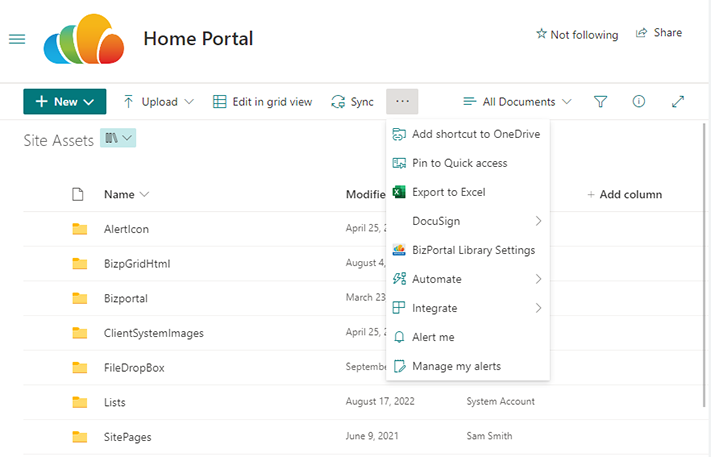
Site asset library helps you store and manage audio-video files, images, CSS, and JS files for organizational use. You can keep specific logos or images approved by the key stakeholders for branding or customizing your company intranet.
Thumbnail-centric views, overlay callouts, digital asset content types, and automatic metadata extraction are a few additional features offered by a site asset library.
3. Site Pages Library
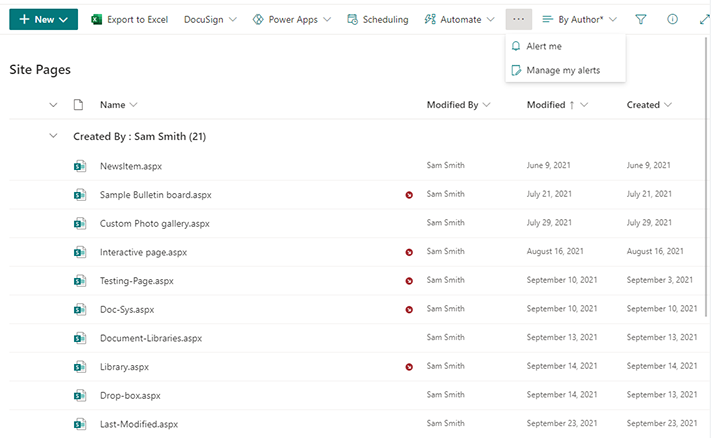
Site pages library allows you to store all the pages created as a part of a SharePoint site.
Let’s not confuse pages with sites, they are two different concepts. While a SharePoint site is a container that includes libraries, lists, and pages, a SharePoint page is a single web page within the site used to display and organize content such as images, texts, and webparts.
Although, a SharePoint site pages library does not allow users to upload but rather stores system-generated content (pages). For example, the pages created in the website’s project section automatically get stored in the Sites page library.
4. Style Library
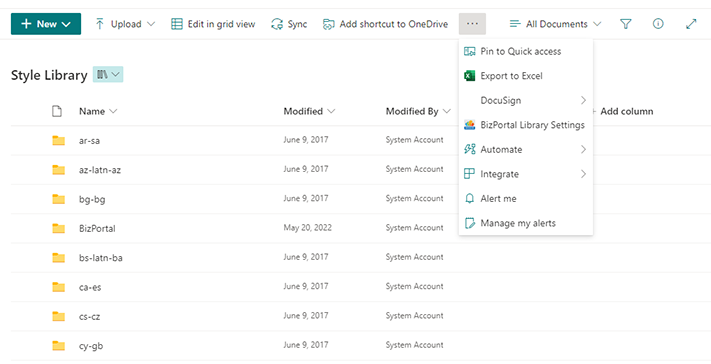
A style library stores all the XSL files, CSS files, and images used in designing controls and layouts of a page. It is a default library that is created automatically whenever a new site is created in SharePoint.
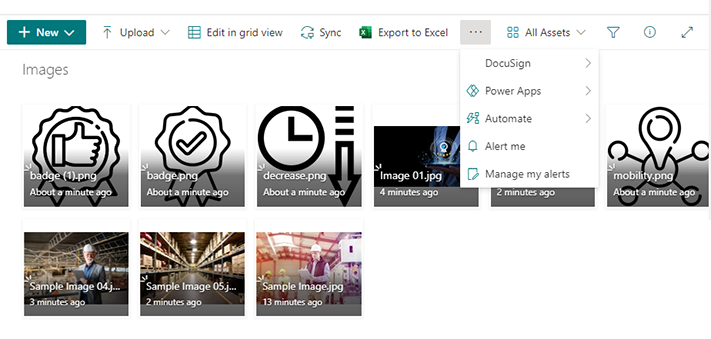
5. Picture Library
The picture library was explicitly created to store images. It, by default, presents a thumbnail view to justify the purpose of this library. You can create folders and add links and pictures to this library. However, adding or creating files other than images is restricted here.
6. Wiki Page Library
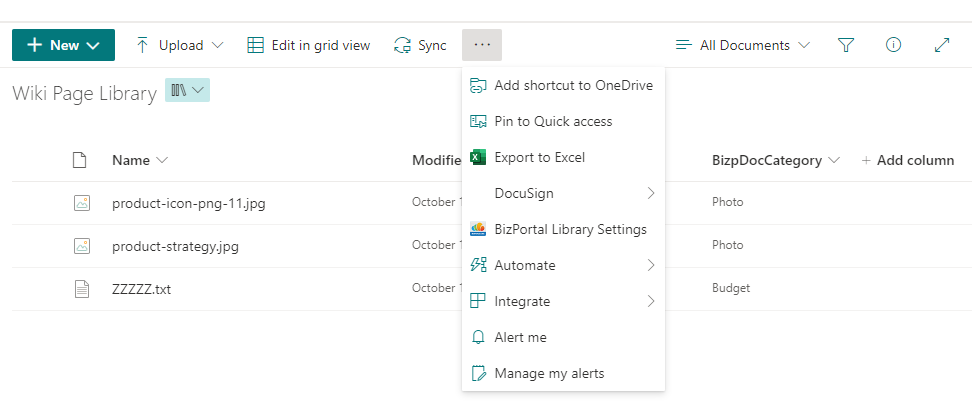
Wiki pages library helps employees to store, manage, and share content easily. A wiki page library in SharePoint resembles a collection of editable web pages or sites to organize overall intranet content. It allows flexibility to the users to create, edit, or remove pages or content.
Best Features in a Modern SharePoint Document Library
1. Offline Syncing
OneDrive integration with the centralized library allows you to sync all the documents from the library to computer devices. It enables access to the files even in an offline remote location, offering a productive workspace environment.
Furthermore, the changes made in the offline mode are synced back to the document library when connected online again.
2. Check-In and Check-Out
The co-authoring feature of the SharePoint document library allows multiple users to access the same document simultaneously.
Certainly, this feature is, by default, active for all the documents stored in the library, offering a collaborative way to track the real-time changes made by other persons in the document.
To avoid any fuss, SharePoint further provides you with a check-out option where you can restrict the other person until you are finished editing the document. Once you are done editing, you can simply check in the document to make it available for others.
3. Version History
No more hustle of saving the older version every time you make a change in a document; SharePoint document library does it all for you.
The version history feature helps you avoid creating multiple copies of a document and brings transparency by displaying who did what to the file. Also, you can easily delete, add, restore, and revert the changes in any version of the file at any time.
4. Metadata Integration
Metadata is simply a set of data that provides information about other data. Hundreds of files are created by the employees daily, and searching for a file created a year ago becomes easy if you add specific keywords and tags to the documents.
Such meta tags include the creator’s name, location, file type, category, and subcategory. Organizing your SharePoint document library using metadata makes it easier to locate documents, even for new joiners, saving a lot of time.
5. Permission Access and Data Security
SharePoint offers unique, adaptable, and secure features, making it one of the most preferred intranet platforms by organizations. Managing and sharing documents among the employees, teams, and departments is made easy by the document library.
You can manage and share documents among the employees, teams, and departments while ensuring access is restricted to only those who need it. Furthermore, you can set or modify permissions for specific documents, lists, and libraries to clearly define user access.
6. Workflow Automation
The SharePoint document library supports automated workflows that allow you to streamline redundant business processes by creating predefined triggers for tasks such as reviews, approvals, notifications, document routing, and more.
Furthermore, with Power Automate integration, you can clearly outline serial and parallel workflows for processes that involve multiple approvers.
Imagine the hours saved by automating document approvals—what could your team accomplish with that extra time?
7. Bulk Upload & Easy Drag-And-Drop
SharePoint-based intranet is well-known for offering the best user experience to employees. The ease of accomplishing minor tasks, such as uploading documents, contributes to the overall productivity of the employees. Have you ever considered uploading all your files at once?
SharePoint document library allows users to upload multiple files at once by simply using the drag-and-drop option. All you must do is select the files, drag them from the desktop, and drop them on the portal where you want to upload them, and it’s done.
SharePoint Document Library Best Practices
What ways help you get 100% out of your SharePoint document library? Surely, a SharePoint document library is a lot more than a pool of documents piled up in a unified place. As mentioned above, it offers exceptional features to configure an organized, secure, collaborative, and efficient document management platform.
Multiple factors like permission levels, meta tags, file storage, document sharing, and workflow automation directly impact the document management strategy of the organization. So, here are some best practices that you can implement to get the most out of their SharePoint investment.
-
Build an organized space to store documents
Intranets based on SharePoint are popular for offering a personalized user experience.
Organizing documents in folders, lists, and document sets and adding meta tags can help you create a more organized library.
Meta-tags attached to the documents make them easily accessible when needed, saving time.Can you guess how many documents can be stored in a library?
SharePoint document library limits allow vast storage of 2 TB and up to 30,000 files. -
Create a secure document library
Documents and libraries, by default, inherit permissions from the site in which they were created, making them less vulnerable to unauthorized access.
Still, you can break this inheritance and add new permission settings.SharePoint document library permission levels ensure what your users can do.
You can grant, edit, remove, check, and delete user permission for any specific document, folder, or library—enhancing data integrity and compliance. -
Ease up the auditing trails
Auditing content changes would be complex without versioning.
Document versioning allows you to track and compare changes made by users in the content and restore any version at any time.Beyond simple tracking, versioning also captures updates to metadata (such as status or priority), making it extremely useful in workflows like IT help desk requests or approval processes.
-
Offer flawless navigation to your employees
Group similar documents by building library templates based on specific content types for more seamless and intuitive navigation.Content types in SharePoint are reusable sets of metadata (department name, file type, created date, modified by) that classify documents.
Adding content types to a library makes files easier to recognize and categorize, while SharePoint’s search options ensure quick access. -
Design a collaborative workplace
A document library improves workplace collaboration and information sharing.
When integrated with Microsoft 365 apps like Teams, Outlook, and OneDrive—as with BizPortals 365—you can securely share files and strengthen record management.This ecosystem empowers you to track, share, retrieve, and co-author documents from anywhere, enabling your team to access and share files with just one click.
-
Automate lengthy approval processes
Add workflows directly to the document library to show employees the real-time status of approval requests.Implementing workflow automation for HR forms, expense requests, and logistics requests reduces manual effort and speeds up decision-making—resulting in happier employees.
How to Create a Document Library in SharePoint?
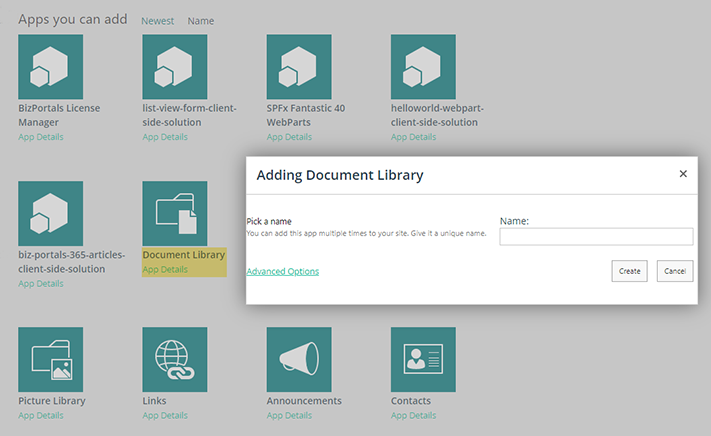
There is more than one way to create a document library in SharePoint, and the best part is that all of them are super easy. While you can go the classic route and create a general document library from scratch or simply explore the pre-built library templates, such as Picture Library or Wiki Page Library to serve a specific purpose. However, it becomes even easier with the robust Library Viewer offered by BizPortals 365. Let us take a closer look at each method.
Option 1: Creating a General SharePoint Document Library
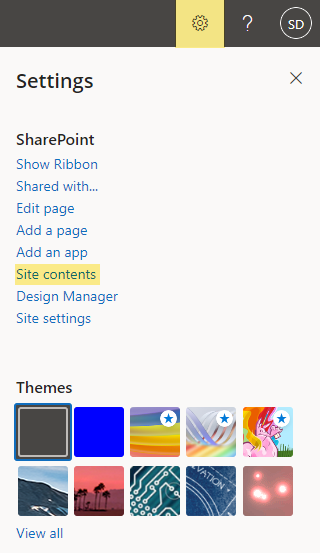
- Login to the SharePoint site and click on the ‘Settings’ icon, as shown in the image below.
- Click on the ‘Site Content’ option provided in the list.
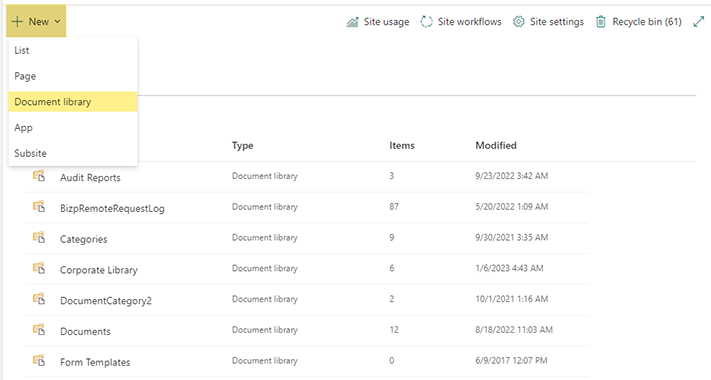
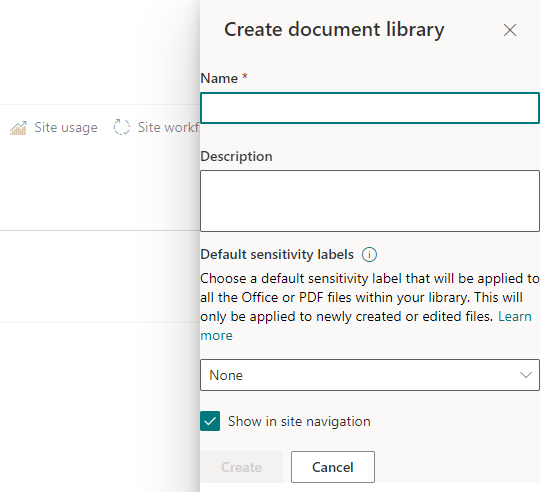
- Click on ‘New’ and select ‘Document Library’ from the drop-down list.
- Enter basic details like ‘Name’ and ‘Description’ and click on the ‘Create’ button
Option 2: Exploring Default SharePoint Library Templates
- Click on the ‘Settings’ icon and select the ‘Site Content’ option (similar to the above process).
- Click on ‘New’ and select ‘App.’
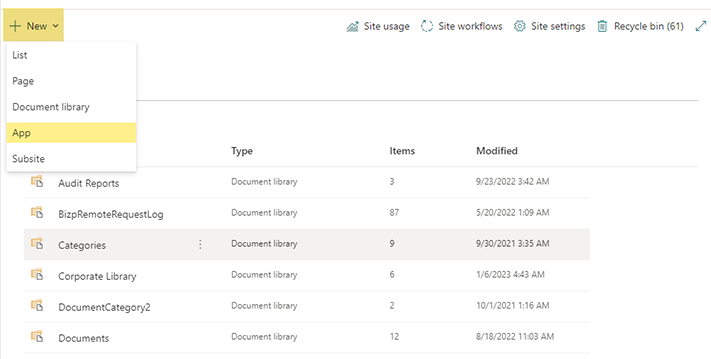
- A number of document library templates appear after clicking on the ‘App’ icon, like Form Library, Picture Library, Wiki Page Library and many more.
Option 3: Creating a SharePoint Document Library with Bizportals 365‘S ‘Library Viewer’
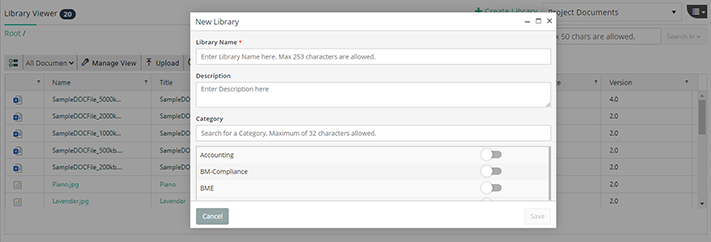
- Click on the ‘Create Library’ option given in the top-right corner of the library Viewer widget.
- Fill in the details asked for in the pop-up window.
- Click on ‘Save’
The fields displayed on the form include the following:
- Library Name: Name of the library that you want to get displayed.
- Description: Provide a basic description to convey the utility and purpose of the library to the user.
- Category: Set the toggle button to ‘Yes’ to provide a default category to the library.
- Default Subcategory: Based on the Default category choice, you can select a default subcategory for your library to organize it further.
Practical Examples of SharePoint Document Libraries
-
Project-specific document library: You can create separate libraries for different project sites to easily find project-related files such as timelines, reports, presentations, and project plans without hunting through emails or personal drives.
-
HR onboarding library: Keep training materials, policy documents, instructional videos, and orientation guides in one place and make it easy for new hires to access everything they need to get started.
-
Marketing campaign assets: Designers and content creators can store images, videos, and promotional materials. This way, you can always work with approved files, reducing mistakes and saving time searching for campaign-related assets.
-
IT support knowledge base: Users can set up a dedicated document library to store troubleshooting guides, FAQs, training materials, how-to articles, and more to centralize all the IT-related knowledge, making it easy for support staff to find information quickly.
-
Personalized work library: Teams can create personalized libraries for schedules, reports, or reference files, keeping day-to-day work organized and reducing time wasted searching for documents.
Strengthen Your Document Management Strategy with BizPortals 365’s Library Viewer
Organizations facing data sprawl as a major hurdle produce tons of unstructured documents daily. Mismanaged and scattered documents give rise to data loss, miscommunication, delayed decision-making, interrupted workflows, and unproductive employees.
However, 21st-century business models are more inspired by the fourth industrial revolution, characterized by automation and intelligent thinking.
Proving this right, BizPortals 365’s digital workplace solutions including SharePoint intranet and SharePoint-based DMS , stands out when it comes to creating a smart, digital, and productive workplace.
Both leverage a centralized and secure library viewer helping organizations dealing with information lag, mismanaged documents, and unorganized storage. It serves as a complete package where users can set alerts, manage workflows, pin documents for quick access, add metadata, and apply advanced search options to the files, saving employees time and effort.
BizPortals 365 DMS, integrated with Microsoft 365 applications, adds additional features to your workplace experience, like instant file sharing through Teams and Outlook. Similarly, OneDrive integration offers flexibility to the users, even in the remote or offline environment.
Pouring efficiency into a lagging organizational structure, it serves as a platform where employees can connect, communicate, and collaborate, upscaling your regular workplace into a more social one. BizPortals 365, an employee experience digital solution with added expertise, drives your organizational goals to reality.
FAQs
-
1. What is a SharePoint document library?
A SharePoint document library is a digital, centralized, and secure repository within the SharePoint environment, allowing you to create, store, and manage files. Simply put, it helps teams keep documents organized, easily accessible, and shareable, while supporting features like quick search, version history, and permissions to maintain control.
-
2. How to organize the SharePoint document library?
A SharePoint document library is one of the most sought-after tools by businesses to store, organize, and access critical documents. However, managing the document library in itself is an essential task to yield the best outcomes. And making minor changes in traditional practices, like preferring meta tags over new folders, can help you organize it well. At the same time, adding configuration alerts, using content types, and trying co-authoring can bring in more efficient results. Read SharePoint document library features and the best practices discussed above for better understanding.
-
3. What is the difference between a SharePoint list and a document library?
Let’s understand some major differences between two similar-looking terms, i.e., SharePoint list vs. Document library. Unlike a library that organizes documents, a list is something that represents data in an organized and tabular format. A SharePoint list looks more similar to an excel sheet or a table in an SQL server database and classifies data in rows and columns. It does not contain files, documents, document sets, or folders. At the same time, a library can have them all.
-
4. What is the difference between a document set and a document library in SharePoint?
A Document set is a collection of documents stored in one place representing a single unit. However, a document library is a much broader repository consisting of multiple individual documents and document sets, both at the same time. Documents sets are primarily classified by their utility or metadata assigned by the user.
-
5. What is the difference between a folder and a library in SharePoint?
A folder in SharePoint is a place where users can store documents to organize or classify them. However, a documents library allows you to create, edit, store, and manage files, folders, and document sets simultaneously. Although a separate library can be created for different sites, projects, and departments, you can also try creating folders to classify specific documents within a library.
-
6. Can I use SharePoint document libraries for version control?
Yes. SharePoint document libraries track and store versions of documents automatically. This allows users to view changes, restore older versions if needed, and prevent confusion when multiple people work on the same file. It ensures teams always have access to the correct version.
-
7. How do permissions work in SharePoint document libraries?
Permissions let you control who can access, edit, or share documents in a library. You can assign access at the library, folder, or even file level. This flexibility ensures that your sensitive documents are protected, while still allowing teams to collaborate effectively.
-
8. What is metadata in SharePoint document libraries, and why is it important?
Metadata is additional information about a file, like author, date, or category. In BizPortals 365 DMS, it helps you organize and search documents more efficiently. Instead of browsing through folders, metadata allows you to add relevant filters and find files quickly based on relevant details.
-
9. How do SharePoint document libraries improve collaboration?
Document libraries in SharePoint offer several features, such as co-authoring, version history, and real-time updates, which keep everyone aligned. Also, with multi-level permissions and sharing options, ensure the right people are involved while maintaining information security. This makes teamwork faster and more organized.
-
10. How does BizPortals 365 DMS enhance SharePoint document libraries?
BizPortals 365 DMS adds ready-to-use features that make SharePoint document libraries easier to manage. It enhances navigation, automates routine tasks, strengthens security, and offers user-friendly tools. These enhancements help organizations save time, reduce complexity, and get more value from SharePoint.

